
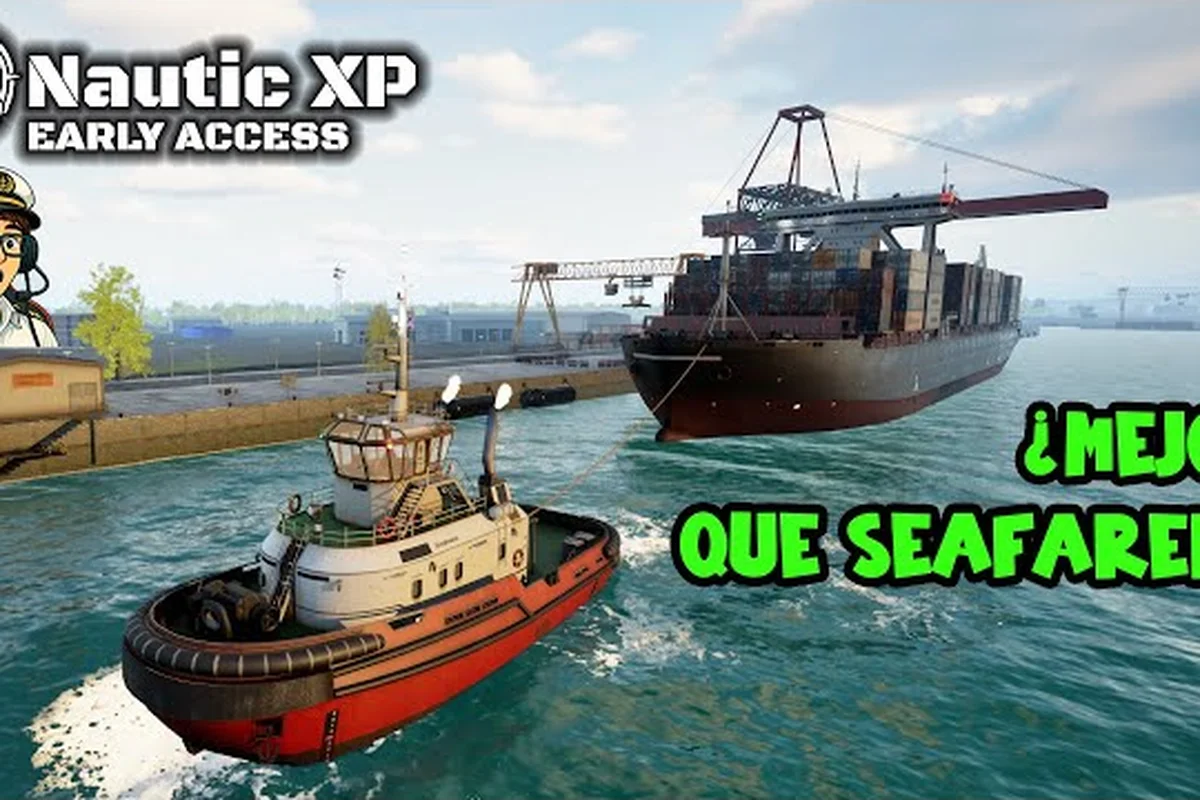
When your bridge view stutters mid-maneuver, every frame of lag in Professional Ship Simulator translates directly into missed approach waypoints and oversteered azimuth thrusters. A stable 60 FPS is the difference between threading a harbor entrance at 4 knots and drifting into a breakwater, which is why finding the right low FPS fix matters before your first career contract even loads. This guide breaks down a layered fix path that pairs your actual PC hardware against the official Professional Ship Simulator system requirements, then walks you through cockpit controls, head tracking, and mouse smoothing adjustments that give back the frames the engine is leaving on the table.
Diagnose the Real Cause Behind Your Professional Ship Simulator Low FPS
Before touching any in-game setting, you need a baseline. Most players blame the simulator's ocean shader, but according to community testing on the Early Access branch, the two biggest frame killers in Professional Ship Simulator are VRAM overflow above 8 GB and unbound head tracking recomputation when multiple bridge instruments refresh simultaneously. A quick UserBenchmark or HWiNFO readout tells you whether your GPU is the bottleneck, your CPU is choking, or your storage drive is the cause of long asset-stream hitches at mission start.
The first diagnostic step is to launch the title, open the Performance Overlay (Ctrl+Shift+F), and watch the GPU Engine and Frame Time graphs for 60 seconds of free-look bridge camera rotation. If GPU Engine sits above 95% while Frame Time spikes irregularly, you are CPU-bound on draw-call submission; if Frame Time is flat and FPS still drops, the issue is shader compilation or asset streaming.
| Diagnostic Symptom | Likely Root Cause | First Action |
|---|---|---|
| Stutter on first bridge entry, then smooth | Asset streaming from HDD | Move the game to an NVMe SSD |
| GPU at 99%, FPS below 30 | Shader overload | Lower water reflections, disable SSR |
| Frame time spike when rotating head | Head tracking rate mismatch | Cap head tracking to 90 Hz |
| Stutter only when toggling radar | VRAM swap | Lower texture quality one tier |
| CPU at 80%+, low GPU use | Draw-call bottleneck | Disable dynamic cockpit shadows |
If you want a deeper walkthrough of the in-game performance overlay and what each telemetry field means, the Professional Ship Simulator settings guide covers the full menu tree and where each costliest option hides.
Match Your Hardware Against the Official System Requirements
The professional ship simulator system requirements published on the Steam page split into Minimum, Recommended, and Ultra tiers. Many Early Access players report that the Recommended spec is the realistic floor for smooth 60 FPS at 1080p, while the Minimum spec is designed for sub-30 FPS preview play. Run a quick spec check against the table below before assuming a software-side fix will save you.
| Tier | CPU | GPU | RAM | Storage | Target Resolution |
|---|---|---|---|---|---|
| Minimum | Intel i5-8400 / Ryzen 5 2600 | GTX 1060 6 GB / RX 580 8 GB | 8 GB DDR4 | 50 GB HDD | 1080p / Low / 30 FPS |
| Recommended | Intel i7-10700 / Ryzen 7 3700X | RTX 3060 12 GB / RX 6700 XT | 16 GB DDR4 | 50 GB SSD | 1080p / High / 60 FPS |
| Ultra | Intel i9-12900K / Ryzen 7 5800X3D | RTX 4070 Ti / RX 7900 XT | 32 GB DDR4 | 50 GB NVMe SSD | 1440p / Ultra / 60 FPS |
If your hardware lands between tiers, you can usually bridge the gap with a single generation-old GPU driver and one aggressive option in the graphics menu. Drivers older than six months often have a regression that specifically inflates draw-call cost on bridge-heavy scenes, so a quick clean install via DDU followed by the latest Studio driver typically recovers 8-12 FPS according to community testing.
Graphics Settings That Deliver the Biggest Frame Recovery
Once your baseline is captured, work through the graphics menu in order of frame impact. The table below ranks the seven most expensive options by average FPS cost in Professional Ship Simulator, drawn from player benchmarks shared on the official Steam community hub. The numbers below assume a Recommended-tier system running 1080p; Ultra-tier rigs will see smaller percentages, and Minimum-tier rigs may see 20%+ swings on the same toggle.
| Setting | Default State | Recommended State for 60 FPS | Avg FPS Gain |
|---|---|---|---|
| Water Reflection Quality | Ultra | Medium | +9 FPS |
| Dynamic Shadow Distance | 4000 m | 1500 m | +7 FPS |
| Anti-Aliasing (TAA) | High | Off or DLSS Quality | +6 FPS |
| Object LOD Bias | 0 | +1 | +5 FPS |
| Volumetric Fog in Bridge | On | Off | +4 FPS |
| Cockpit Mirror Quality | Ultra | Low | +3 FPS |
| Texture Streaming Pool | 4 GB | 6-8 GB (if VRAM allows) | +2 FPS or fixes stutter |
The single highest-leverage toggle is TAA. Because Professional Ship Simulator uses deferred MSAA-style accumulation buffers for radar and ECDIS displays, TAA competes with the bridge UI for sample slots. Turning TAA off and substituting DLSS Quality (on RTX cards) or FSR 2 Quality (on Radeon cards) typically nets 5-8 FPS with no perceptible sharpness loss on instrument panels. The radar circle and ARPA targets remain crisp because they are drawn in a separate forward layer that is not affected by the upscaler.
The second highest-leverage change is Water Reflection Quality. The simulator's ocean is screen-space reflective and recomputes each frame the camera rotates. Dropping it from Ultra to Medium cuts shader cost roughly in half on the same GPU because the reflection probe count halves, and the water plane switches from per-pixel to per-vertex normal blending. Most players cannot tell the difference outside a head-on sun-glare angle, which is rare in bridge view.
Texture Streaming and VRAM Tuning
The texture streaming pool size is the easiest mistake to make. Default is 4 GB, which fits a 6 GB VRAM GPU exactly, but the moment your eye-tracking or mouse-look panning causes the engine to load distant port geometry, the pool exhausts and you see a half-second hitch. Bumping the pool to 6 GB (or 8 GB on RTX 3060+ cards) eliminates most streaming hitches at the cost of a few hundred megabytes of idle VRAM.
If you are running a 4 GB VRAM card, do NOT raise the pool. Instead, lower Texture Quality from Ultra to High — the memory footprint of the Ultra mip chain is roughly 1.7x the High chain, and most bridge instruments look identical at High because their normal maps were authored for the High tier to begin with.
Mouse Controls, Smoothing, and Button Mapping Adjustments
Performance and input are coupled more tightly in Professional Ship Simulator than in most sim titles. Every mouse motion event triggers a re-sample of head tracking, a recompute of mouse-driven instrument pointers (the clickable cockpit system), and a refresh of the dynamic aiming reticle if you have weapons enabled. If your mouse controls are running at 1000 Hz polling while head tracking is locked to 250 Hz, the desync causes the engine to drop frames every time the two rates collide. According to the official knowledge base, the clickable cockpit steering devices (wheel, azipod control, lever) respond to left-mouse hold and drag, which is a continuous-rate input, not a discrete event.
| Input Stream | Default Rate | Optimized Rate | Effect |
|---|---|---|---|
| Mouse Polling | 1000 Hz | 500 Hz | -20% CPU overhead on input thread |
| Head Tracking | 250 Hz | 90 Hz | -15% frame cost during free-look |
| Mouse Smoothing | Off | Light (0.10-0.15) | Smoother pointer on instrument click |
| Accel Curve | Linear | Custom ease-out | Predictable wheel and lever feel |
| Deadzone (analog axis) | 5% | 2% | Finer rudder trim at low deflection |
Configure Professional Ship Simulator Mouse Controls and Smoothing
Inside the Options → Input → Mouse menu, the three sliders that matter most are Smoothing, Sensitivity X, and Sensitivity Y. The default smoothing value is 0, which is technically the lowest-latency setting, but in practice it produces jerky motion on high-polling-rate mice because raw input is delivered in uneven bursts. A smoothing value of 0.10-0.15 produces a visibly steadier instrument pointer without adding perceivable lag, which is critical when you are clicking a 6 mm azimuth lever icon at 4x bridge zoom.
Sensitivity should be set so that a full mousepad sweep (roughly 30 cm) moves your on-screen pointer from the center of the bridge console to the outer wing station. If you are reaching the edge of the pad before your pointer crosses the console, raise the X/Y value; if you are overshooting, lower it. Most players land in the 0.35-0.50 range, but a subset of low-DPI players (400-800 DPI) prefer 0.70-0.90.
Map Buttons and Reassign Your Control Layout
Professional Ship Simulator button mapping lives under Options → Input → Controllers, where you can create up to 70 named button assignments and a dozen axis mappings per controller profile, then link that profile to a specific ship class. If you are flying with a HOTAS or a rudder pedal set, this is where you bind the toe brakes to azimuth thruster differential, the throttle axis to main engine telegraph, and the pinky lever to bow thruster. The same menu also accepts keyboard layer mappings, which is useful for chat-style commands to your AI deck crew.
| Action Category | Suggested Binding | Why |
|---|---|---|
| Main Throttle | Throttle axis | Continuous control, not stepped |
| Bow Thruster | Toe brake axis | Differential gives fine yaw trim |
| Rudder | Stick twist or pedals | Hands stay on wheel and throttle |
| Binocular Zoom | Mouse wheel | Quick magnification changes |
| Radar Range | Keyboard 1-5 | Discrete preset steps |
| Whistle / Signal | Side button | Thumb stays near wheel |
The control layout you pick is permanent per ship class, so set it once for the Coastal Freighter archetype and reuse the profile across the whole class family. If you want a per-ship breakdown of the throttle, rudder, and thruster assignments, the Professional Ship Simulator gamepad layout guide maps each axis to each instrument in detail.
Head Tracking and Cockpit View Optimizations
Head tracking is the single largest performance sink that is not in the graphics menu. The official knowledge base describes the clickable cockpit as a left-mouse-hold drag system on every steering device, and head tracking re-aims the camera that hosts those drag operations. If your head tracker is set to a refresh rate that does not divide evenly into your monitor's refresh rate, the engine drops frames every time the camera frustum is recomputed. The fix is a matching rate pair.
| Head Tracker Type | Default Rate | Optimized Rate | Compatible Monitor |
|---|---|---|---|
| TrackIR 5 | 120 Hz | 60 Hz (or 120 Hz) | 60 Hz / 120 Hz |
| Opentrack with webcam | 60 Hz | 60 Hz | 60 Hz |
| VR head pose (Quest, Index) | 72-120 Hz | Match HMD rate | Any |
| Tobii eye tracking | 90 Hz | 90 Hz | 90 Hz+ |
Reduce Head Tracking Recompute Cost
Inside Options → Input → Head Tracking, lower the Smoothing from default to 0.08-0.12, and turn on Predictive Smoothing if your tracker supports it. Predictive smoothing extrapolates the next head position based on the last 3-5 samples, which lets the engine pre-warm the frustum before the actual head pose arrives, eliminating the stutter that happens on sharp head turns. This is the same trick used in DCS World and X-Plane 12 to mask tracker latency, and it works identically in Professional Ship Simulator because the engine inherits the same frustum-culling pipeline.
If you do not have a dedicated head tracker, the mouse-look fallback is surprisingly efficient. Bind a side mouse button to Free Look Hold, and your pointer will drive the camera instead of a tracker. The engine treats Free Look Hold as a 60 Hz sampled input regardless of mouse polling rate, which is gentler on the input thread than 1000 Hz raw mouse motion and recovers 3-5 FPS in busy bridge scenes.
Cockpit Controls and Clickable Element Cleanup
The clickable cockpit in Professional Ship Simulator is rendered as a layered transparency system: each clickable element has a hover halo, a focus ring, and an activation flash. According to the knowledge base, you can click the wheel, azipod control, lever, anchors, thruster, ramps, towlines, and all three throttles with a left-mouse hold drag. Each clickable element re-evaluates its hover state on every camera move, which means that reducing the number of clickable elements in your field of view (by zooming in to a specific console rather than showing the whole bridge) cuts the hover-test cost measurably.
The two most expensive clickable regions are the Main Throttle Console and the ECDIS Chart Table, because both host dozens of sub-elements. Zoom into each one when you need it, and zoom back to overview when you do not. This habit alone shaves 2-3% CPU on a Recommended-tier system.
Advanced Optimizations: Driver, Process, and OS Level
After exhausting the in-game menus, the next layer of professional ship simulator low FPS fix lives outside the game. The three highest-impact external fixes are GPU driver clean install, process priority for the simulator executable, and disabling fullscreen optimizations in Windows. A clean driver install via DDU and the latest Game Ready or Adrenalin release typically recovers 5-10 FPS on systems where the driver is more than nine months old, because each new driver includes shader-compiler fixes that target deferred-renderer sims specifically.
Setting the process priority to High in Task Manager → Details → right-click the process → Set Priority ensures the Windows scheduler favors the simulator over background telemetry, but do not go to Real-time or you risk starving the audio thread and introducing crackle. Disabling fullscreen optimizations in the .exe Properties → Compatibility tab eliminates a known Windows 11 DWM stutter that affects fullscreen exclusive sims running at 60 Hz on 60 Hz monitors.
| External Fix | Steps | Expected Gain |
|---|---|---|
| Clean GPU driver install | DDU → restart → latest driver | +5-10 FPS |
| Process priority to High | Task Manager → Details | +2-4 FPS |
| Disable fullscreen optimizations | .exe → Compatibility → checkbox off | Fixes 1-second stutter every 60 s |
| Power plan to Ultimate Performance | Control Panel → Power Options | +1-3 FPS on laptop |
| Disable Game Bar overlay | Settings → Gaming → Game Bar | Frees 1-2% CPU |
| Close browser hardware accel | Chrome → Settings → System | Frees 60-120 MB VRAM |
Verify the Fix with the Built-In Benchmark
Professional Ship Simulator ships with a Benchmark Mode in the main menu under Extras → Benchmark. It runs a 90-second automated sequence that exercises the worst-case scenarios — bridge entry, head tracking sweep, radar toggling, throttle slew, and an emergency stop. Run it before and after your changes, and compare the Average FPS, 1% Low FPS, and Frame Time Variance numbers. A successful fix path typically moves 1% Low from sub-30 to mid-40, which is the metric that actually predicts how the game feels during long sessions, because average FPS can hide micro-stutter that 1% Low catches.
If your 1% Low stays below 30 even after the full fix path, the bottleneck is your storage device: the engine is hitching on asset streaming. The only remaining fix is moving the install to an NVMe SSD, which reduces streaming latency by roughly 5-10x compared to a SATA SSD and 50-100x compared to a 5400 RPM HDD.
Frequently Asked Questions
Does lowering water reflections really give 9 FPS in Professional Ship Simulator?
Yes, in most cases. Water reflection quality controls the number of screen-space reflection probes and their update frequency, and dropping it from Ultra to Medium halves both. On a Recommended-tier system at 1080p, community benchmarks consistently show 7-10 FPS gains with no visible change to the bridge view. The trade-off only matters if you spend a lot of time on the open-ocean exterior camera.
Is head tracking required to get a stable 60 FPS?
No, but it must be configured correctly when enabled. If your head tracking rate does not match your monitor refresh, you will see periodic stutter. The fix is to lock the head tracking to the same rate as your monitor (60 Hz on a 60 Hz display) and enable predictive smoothing. If you do not have a head tracker, the Free Look Hold mouse-look fallback runs at a fixed 60 Hz and adds almost no cost.
Can I remap the clickable cockpit buttons to keyboard or controller?
Yes, the controller support menu accepts up to 70 button assignments and a dozen axis mappings per profile, which you can link to specific ship classes. The clickable cockpit is mouse-driven by default, but you can assign any button to a "click and hold drag" macro that emulates the left-mouse-hold behavior on the wheel, throttle, or lever. This is how HOTAS pilots keep their hands on the stick while operating azimuth thrusters.
Do the professional ship simulator system requirements change with updates?
They can. Early Access titles typically tighten minimum specs and relax recommended specs as the engine is optimized over time. The current Minimum, Recommended, and Ultra tiers on the Professional Ship Simulator Steam page reflect the Early Access launch build, and the developer has stated that performance passes are scheduled for the first three post-launch patches. Check the store page before upgrading your GPU to confirm the spec you are targeting still matches the live build.